Escaping Windows for Linux: A guide for those who don't know what journalctl is.


I've had enough of Windows and I suspect you have too.
I won't retell all the silliness that Microslop has been up to but instead dive straight into a solution: Installing some flavor of Linux and finally taking back control of your own PC. This post will be a little different than my usual fare which is very programming heavy, but being that most of the software I write runs on Linux systems, using one as my home machine has been a great chance to refine my skills and make my personal machines more usable, and my experiences recently with just how stable and reliable it has been have encouraged me to recommend it to others, even those who are non software engineers. I hope this post helps you make sense of the process of switching and encourage you to take the leap.
If you want to jump straight into the install steps go to this section to skip all the extra context and history below. You'll need a running full desktop computer of some kind for running the ISO flashing software (Windows, MacOS, Linux, even Android are all fine), a 32gb drive (you can go smaller but 32gb is about the smallest you can buy nowadays, it needs to be as big as the ISO file you'll download), a spare drive to install Linux onto (or your main SSD if you're ready to irreversibly upgrade), and a spare hour or two.
What's in this guide
- History & Context — Who this guide is for, my background, and Linux basic terms
- Problems to Expect — Known blockers and issues before you start (anti-cheat, Office)
- The Actual Install — OS installation
- Using Your New System — Flatpaks, Flathub, terminal basics
- Things I've Loved — The good stuff that makes it all worth it
- Scripting Basics — A simple bash script example
- Further Reading — Books, articles, and communities
The goal
This guide will cover an actual full system install aimed at beginners and as such won't get under the hood of how Linux works and how to really mess with it. I am going to focus on what you need to get rolling fast and with minimal buzzwords being thrown at you, although some history and technical terms being explained right away will make the experience much more pleasant. There are MANY more detailed guides written by far smarter people than me if you want more details so treat this post as a spring board. This guide was largely inspired by friends and colleagues considering making this leap and needing a general sense of direction.
Not ready to take the full dive?
An alternative is to use a software like VirtualBox to install a Linux ISO as a Virtual Machine (VM) inside your original system. You can do that on both Windows and MacOS. If you don't know what a VM is go check out this article by Google. It sounds complicated at first but in practice it's a pretty simple thing that will unlock a whole new world for you.
If you just want a quick preview of what it's like to navigate a given version of Linux, and test out software like LibreOffice Calc replacing Excel as mentioned in this section, then this is a great choice. You should probably not do things like gaming in a VM as they are pretty resource intensive and bit restrictive for hardware intense software like video games. But you can blow it away easily (or blow it up) and not affect your underlying system at all.
Some brief history on me so you know I know what I'm talking about
In an effort to show this advice comes from a real person and not just the Microslop garbage we're trying to escape, I think its worth having a quick context on how I got here and my previous experience with OS installs and custom systems. I've been building custom PCs for gaming for myself and others since I was about 15, a mildly alarming 20 years ago. Importantly I'm NOT coming from a background of 20 years of Linux experience and have largely used Linux in a manner professionally that amounted to "run this command when things go bad" or "just take a VM snapshot and revert if you get an error" without learning much else until recently. As a result you won't get the usual dumps of information from Linux experts that unconsciously assume significant pre-existing knowledge, nor the RTFM style condescension. It's hard to know how to read the manual when you don't kow there is one or how to find it (Linux it turns out has a great manual but we'll get there). I'm probably only a year removed from being as confused as you are and have been using Linux in a few different configuration as my main gaming machine OS for about 6 months now. Far from an expert, but enough to helpful, I hope.
A split childhood (Windows 95 and The Bubble Mac)
I grew up on both major operating systems of the era. My earliest memories with a computer were both a Windows 95 machine (and vague memories of an MS DOS one) that my mom used for work over a dial up connection as she was literally one of the first internet remote workers, and the original "bubble" iMacs G3s at my elementary school, which came from Steve Jobs push to integrate with educational institutions. As a result I've always been comfortable with both, and that continued for many years using Windows machines for gaming and school work (and many a terrible powershell script) and MacBooks for professional software development work (and many a terrible bash script).
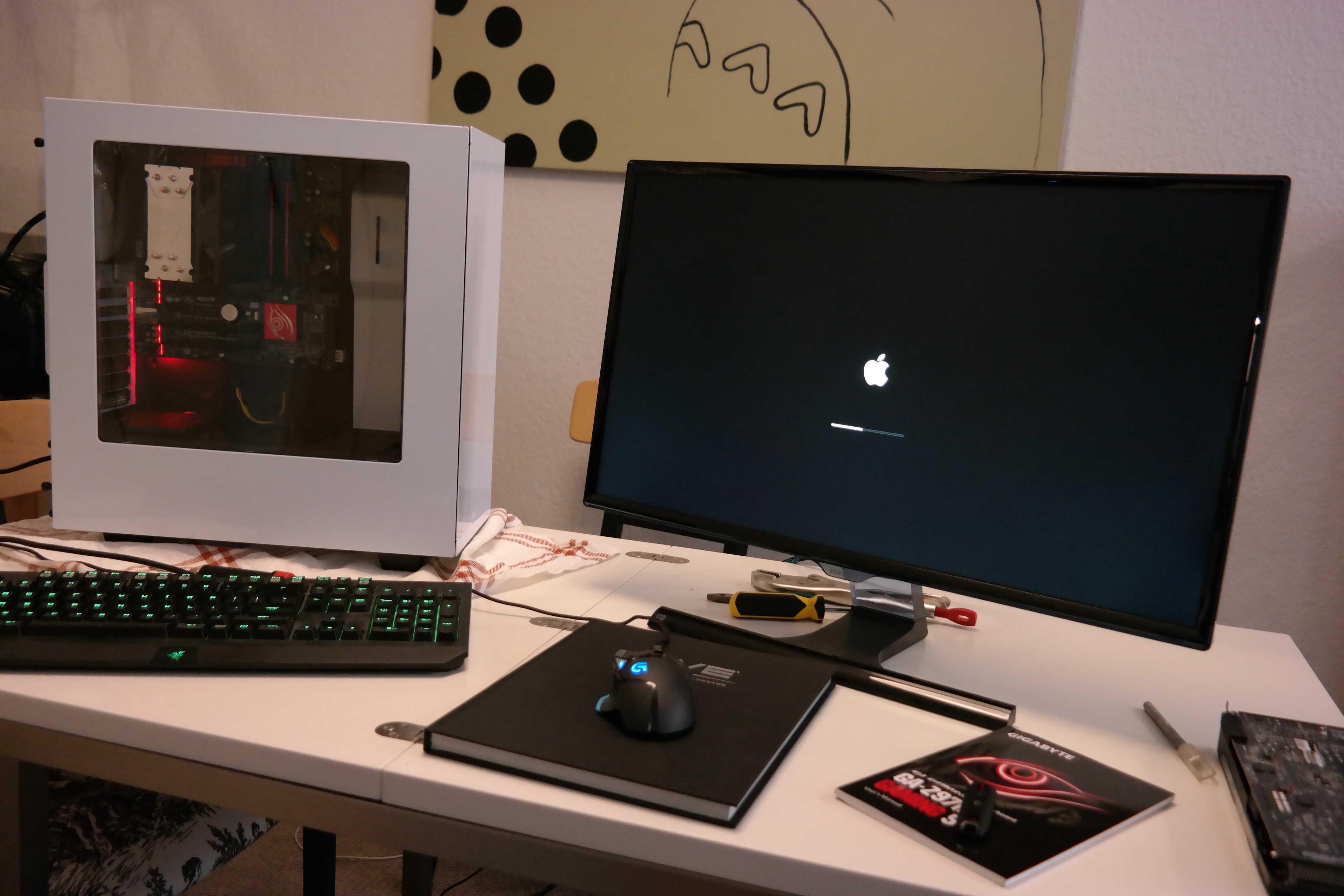
This split brain was so strong that at one point I even built Hackintosh machines when you could still do that (pre Apple Silicon). Here's a machine I built in 2015 for my girlfriend at the time who wanted to play League of Legends on MacOS without spending thousands on a Mac Pro.
Linux, distros, FOSS, and you
What is Linux anyways?
In its simplest definition, Linux is a free open source (FOSS) computer kernel used to send instructions to underlying hardware, routed from some input by a user or other software. One could imagine the kernel as the first layer that sits right above the BIOS, below the "user space" of applications. The Linux kernel itself was first developed by Linus Torvalds who admired Unix-like operating systems but disliked the licensing restrictions around them. Specifically the MINIX kernel by Andrew Tanenbaum was a big inspiration. So Linus built his own version. At the same time, Steve Jobs NeXT Computer OS also featured a Unix like kernel and was rolled into early MaccOS on his return to the company, hence why a Mac desktop OS has similar functionality to a Linux system in the command line.
The kernel alone isn't super useful to you as a normal person, and to have a full operating system as you know them (even a pure text based one with no graphical UI) there's a lot of extra software that has to get bolted on around it. This is the source of all the different flavors of Linux, sometimes known as distributions or "distros". Fedora, Ubuntu, CentOS, Bazzite, Alpine, SteamOS, Arch, and others all share some form of the Linux kernel at the core (and all benefit from kernel improvements), but with different configurations of other software around it to make a system for a specific purpose. Some versions of Linux are meant to just run server applications for example and aren't very nice to use as a human. This diversity is a strength, as there really is a distro for anyone, but it can also be paralyzing as one wonders what "the best" choice is.
This "kernel plus other software" concept is the source of a lot of snarky comments you might have seen about "I don't get why linux noobs want SteamOS, you can just make it yourself". "Just make it yourself", were it so easy. This comment is technically correct, but in practice it's useless for people who've never even used Linux before. What they are referring to is starting with some base OS install (in the case of SteamOS it's based on Arch, a notoriously difficult version of Linux to even install), and then add on Steam and any other gaming software you might need. This is a more than valid way to start but is certainly more difficult. Granted if PewDiePie can do it, I think we all should be inspired to be a little more adventurous with our OS installs. Be warned if you follow this path you may wind up building all your own replacements for other software from Google, Microsoft, and Apple and hosting them yourself, just like Pewds. The self hosted abyss stares back.
Atomic / immutable systems
A term you'll see thrown around is "immutable" or "atomic" operating system, and we are going to be installing one. What this word means, is that the core files that make up the OS are integrated in such a way that they cannot be modified by you the user or another program. It lacks the ability to be mutated. This is a stark contrast from traditional Linux systems that allowed programs to update core configs, and all it took was one or two janky programmed applications (or just unfortunately programmed for a given system) to modify a core file in some incompatible way that took down the whole system.
This mutability was the source of many issues people have had with Linux over the years, and to be fair also Windows and MacOS occasionally. Just because an OS is made by a mega corp doesn't make it immune to mistakes in the core files. But this new wave of Linux systems treats the OS differently, and as a result creates a system that lacks some of the previous Linux hackery, for the better. A Linux expert who knows how to navigate such issues won't be reading this article anyways, and you can always give one of these a go on a spare drive at some point.
Instead on an immutable system, each application on the machine is "layered" into the system in its own sandbox, and as a result doesn't rely on shared libraries of code. This is built on a concept called The Open Container Initiative which was originally aimed at building individual software applications as "containers" with code layers that have defined methods of interaction. Immutable operating systems are the result of taking that same concept and applying it to the whole OS. This does increase the total storage cost of the system as there are duplicated dependencies and layer overhead (each in their own sandbox) but the cost is minimal given how cheap storage is.
This creates limitations to what you as the user can do, which experts will chafe against, but results in stability and a safer, more secure platform to learn on. It is my opinion that that is what most computer users want anyways, and when they want to swim out into more dangerous waters they can do so on their own terms vs being thrown straight into them off the side of the mega corp yacht. A few examples are Bazzite, Fedora Silverblue, Fedora Kinoite, and SteamOS.
You can see here from the Fedora homepage there are quite a few unique flavors of the OS including classic mutable versions. All free for you to download and try via their ISOs. Kinoite and Silverblue for example are essentially the same core OS with a different UI wrapper, Kinoite being more Windows like and Silverblue being more MacOS like (we'll get there in a sec).

Why Bazzite?
Bazzite is immutable Fedora meant for gaming. It benefits from all future improvements to the Linux kernel and Fedora itself. For you as the gaming user, the main advantage of Bazzite is that it has Steam pre-installed as a core application and has a few other tweaks under the hood for gaming in other launchers too. It will include your needed GPU drivers right out of the box depending which version you download (AMD vs Nvidia). That said, you'll have a great experience gaming on any version of Fedora nowadays too so feel free to branch off from this guide if you'd like and just install the needed gaming launchers yourself. Bazzite also has a great FAQ page here if you're curious about more.
KDE and GNOME
KDE and GNOME are two words you're going to see thrown around a lot. In our previous mentions of version of Fedora, Kinoite uses KDE and Silverblue uses GNOME. They are two different software libraries that create the UI you see when you load the system. KDE will feel very familiar to any Windows user, and GNOME is more similar to MacOS but both can be customized and expanded more than an Apple OS. I have a personal preference towards KDE as I like its more detailed menus and included software like Dolphin (folder / file explorer), Kate (lightweight text editor), and Haruna (video player) but they are both solid choices. If you've ever been pissed off about Microsoft making the right click menus objectively worse, you're going to love KDE.
Wayland
Wayland is a "desktop compositor" or a tool used to draw UI elements and allow them to communicate with each other. It's another layer of FOSS used to build your final usable desktop and both KDE and GNOME use it. I mention this as you'll soon see references to Wayland (and an older similar software called x11) in discussions about KDE and GNOME features and how they interact with other software. You don't need to know how it works, just know you are using it with Bazzite.
Why not SteamOS?
As of this writing SteamOS is only built for AMD hardware, and primarily their mobile hardware at that. This makes sense given the Steam Deck and upcoming Steam Machine / Gabe Cube are built on AMD mobile chips. I tried getting it to install on my system (AM4 CPU, DDR4 Ram, AMD GPU) but it failed for reasons I decided weren't worth diving into before going back to Bazzite. In the future this is very likely to change though and it's worth keeping on eye on what Valve is up to on this front as they seem to be gunning for the Windows throne.
In my experience trying to install SteamOS, it also is not currently setup to handle multiple drives on the machine well, and will default to install on the first drive it sees without letting you choose one. This makes sense given its designed for Steam Decks that have one storage drive, but for desktop systems this is not very user friendly and could result in wiping a drive you don't want to wipe.
Why not that one distro I heard about?
I don't know man theres more Linux distros out there than anyone has time to research. One thing about diving into this world is it does require you to be able to do some reading and homework and thats a good thing. A corporation is no longer doing it for you. My own reading and experiences has landed me on Bazzite KDE having the best set of trade offs for someone coming from a lot of Windows previously, who plays games, occasionally writes some custom software, and does some light media editing on their desktop.
Windows by default nowadays treats you like an idiot, Linux by default treats you like an expert (for better or for worse). I find one of those insulting and one of them freeing, but it does come with the responsibility to make your own choices and deal with them, with the trade off being it's really your computer to do with as you want now.
Obviously make some file backups before diving in.
Problems you can expect
Kernel-Level Anti-Cheat Games
If you play League of Legends every day and aren't interested in kicking that habit, this isn't for you right now. Certain games like League, Battlefield, and Valorant require something "kernel level anti-cheat" software which literally can't run on Linux as Linux doesn't allow it. Anti-cheat software makers will have to change their methods for this to ever be resolved as the Linux community is unlikely to ever allow it, especially in the wake of the Crowdstrike outage that was caused by poor coding around Windows kernel access.
Microsoft Office
Or as they now want to call it "365 Copilot App" I guess? I'm not fully sure as their official article is so badly written I suspect Co Pilot wrote it in true Microslop style.
This could be considered a hard blocker that might require time to prep before switching if you're running a local instance of Office like it's 2011. Granted if you're here trying to get away from Microsoft, you probably want away from Office too. There is no native version of Office on Linux and there never will be given Microsoft's reluctance to even make a Mac version of their software. Tools like Wine, Bottles, and running Windows in a VM are all an option but have varying levels of jank and brokenness. Other options include running Office in its web browser version, Google Docs, LibreOffice, and replacing it all with markdown docs / Python scripts / and a PostgresQL database if you're feeling spicy.
Excel
I mentioned Office above, but Excel deserves its own callout due to its main use as a local application and overlap with scientific work, software engineering, and data engineering (my usual specialties). I used to use Excel full time as an analyst and Eve: Online player (yes I'm saying that with a straight face you should have seen my manufacturing supply chain spreadsheets), but I've been out of it for a few years so my opinions will be less helpful here.
That said, the Libre Office suite of software has LibreOffice Calc which is meant as an open source Excel replacement. I would advise you install LibreOffice on your current native system first (it's open source and free and has Windows and MacOS versions) to see if it meets your needs before proceeding. The experience should be the same on Linux. It handles Excel docs natively and has similar feature parity of Excel, but given the vast set of features and use cases of Excel a full assessment is far beyond my skills. I was able to find this nifty feature comparison of the two though that might come in handy.
Dual booting on a single drive
Immutable OS's like Bazzite, SteamOS, and Fedora Silverblue don't like sharing drives. If you're making this leap I'd advise NOT trying to dual boot off of one drive with split partitions but instead install other OS's on their own separate drives. Part of what makes the magic of immutable OS's work is a system where new partitions are created and destroyed to deploy new "trees" of the total operating system application code. When you run an update of the OS for example, a whole new stack of operating system code is built in one partition, and your old tree is kept in place for some amount of time. If the new tree is busted, you can jump back to the old one. This is part of what it means to not mutate the OS. You create a new version, not modify it in place. But this dynamic partition allocation can wreak havoc on dual booted systems without precautions. So for the typical audience of this guide, just don't do it.
Non flatpak Linux software
In order to install a flatpak software from Flathub (more on that in a bit), someone has to have taken the time to build a flatpak of it containing the application code with all its dependencies so it can run properly in its own sandbox and then pushed it to the hub. It is a community project. Many of the most popular applications have already had this done like LibreOffice, Firefox, ProtonVPN, Steam (if you're not using Bazzite that already has it layered in natively), etc. But if say you need some niche piece of old software that no one has made a flatpak for...well I guess you better get on that and contribute eh?
Bazzite comes with a set of software packages designed for building your own flatpaks, so you will already be equipped to make your own right away. How to do that is beyond the scope of this article, but is well within the skills of a typical software tinkerer, as the flatpaks are defined via config files that are very readable to a normal person with enough curiosity to run some internet searches.
Nvidia stuff
Nvidia drivers have improved a lot in the last year in Linux. So much so that I'd say you're unlikely to encounter an Nvidia specific issue as of this writing, with exception of the screensharing issues I ran into documented below. If you're a serious streamer you probably have a separate capture card / capture PC anyways. Nvidia seems to be taking Linux more seriously so the future looks bright here, but being that their drivers are closed source we are 100% reliant on them to fix the issues here. That said AMD has had open sourced drivers for ages now, so they come pre baked into Linux distros and as a result of being open sourced are better understood and optimized. If you have an all AMD system, Linux is 100% or you. God bless Lisa Su.
Issues that I have hit (listed in order of annoyance)
Screensharing / streaming on Discord
Related to the section about Nvidia GPUs, screensharing and audio sharing over Discord were basically non functional with my RTX 3070. That was caused by a lack of implementation of a hardware encoding library that Nvidia uses on the part of Discord, combined with restrictions in flatpak software (other more traditional Linux distros don't have this issue). Screenshare "worked" but the quality was abysmal and audio flaky. This is a fixable issue though, and one that is on the roadmap for Discord, so keep an eye on updates about Discord, Linux, and Nvidia software as the next year will likely show large improvements on that front. Some recent improvements are documented in this video, though the creator calls out that flatpak versions still have limitations around permissions, but these are fixable issues.
When I jumped to an AMD GPU things got instantly better but still a little flaky. The best combo I've found for now is to not use the official Discord flatpak, but instead use the Vesktop flatpak. This is a third party client that has a bunch of cool customizations and features, one of them being improved screensharing options. Video and audio work great now and the main limiter on my video quality is now my crappy upload speed thanks. Thanks Comcast.
OpenRGB
I have a few RGB accessories and light strips in my PC and I have not yet been able to control all of them with OpenRGB in Linux. This is interesting because OpenRGB had no issue on Windows so the problem is truly OS / Linux version specific. The application hangs part way through scanning all my RGB devices, seemingly because one of them doesn't send a response back that the software expects. If got that far in diagnostics by launching OpenRGB from the CLI with a flag that shows logs. The devices it does scan work great though in terms of color control. If I solve this I'll make a whole post on it as I suspect it might actually require me to make code changes to OpenRGB in a different distro or possibly install some hardware control software for the components in question.
Overclocking confusion
I'm going to make a whole post on this next as it was a bit of a funny misadventure mostly caused by user error and some slightly unintuitive software UI (a classic open source problem) in LACT. The short version is: use LACT, turn on "manual" clock speed control and make sure to click into the "Curve" tab in the "Thermals" window to turn on a real fan curve, as the default AMD drivers run the GPU in a very conservative state that doesn't use the GPU to its full potential. Once you do that you should see full clock speeds, power draw, and fan usage.
Logitech mouse custom mappings
I have a Logitech G502 mouse and one thing I immediately missed was the application made by Logitech for managing shortcuts and settings on their hardware. As of this writing there is no Linux version. I've been using Piper for now, and it works pretty well for my needs of controlling DPI and customizing some buttons but lacks media control shortcuts like pausing music or skipping tracks on clicking one of the extra keys on the G502. I'll keep exploring on this one and update this section if I find a better solution. It's usable for now though.
The actual install steps
ISO Flashing
This part at least is the same as installing Windows or MacOS on a system. Just like installing a fresh version of Windows, you'll need to create a bootable USB drive from an ISO. I like to use either Balena Etcher or Rufus for this. I previously did this with the built-in feature in Windows Recovery but I'm unsure if it will let you create bootable USB drives of anything other than Windows ISOs.
To get your ISO for Bazzite, go to the official Bazzite page here and click "Download" in the top right corner. For a KDE Bazzite experience that mimics Windows you'll want these options.
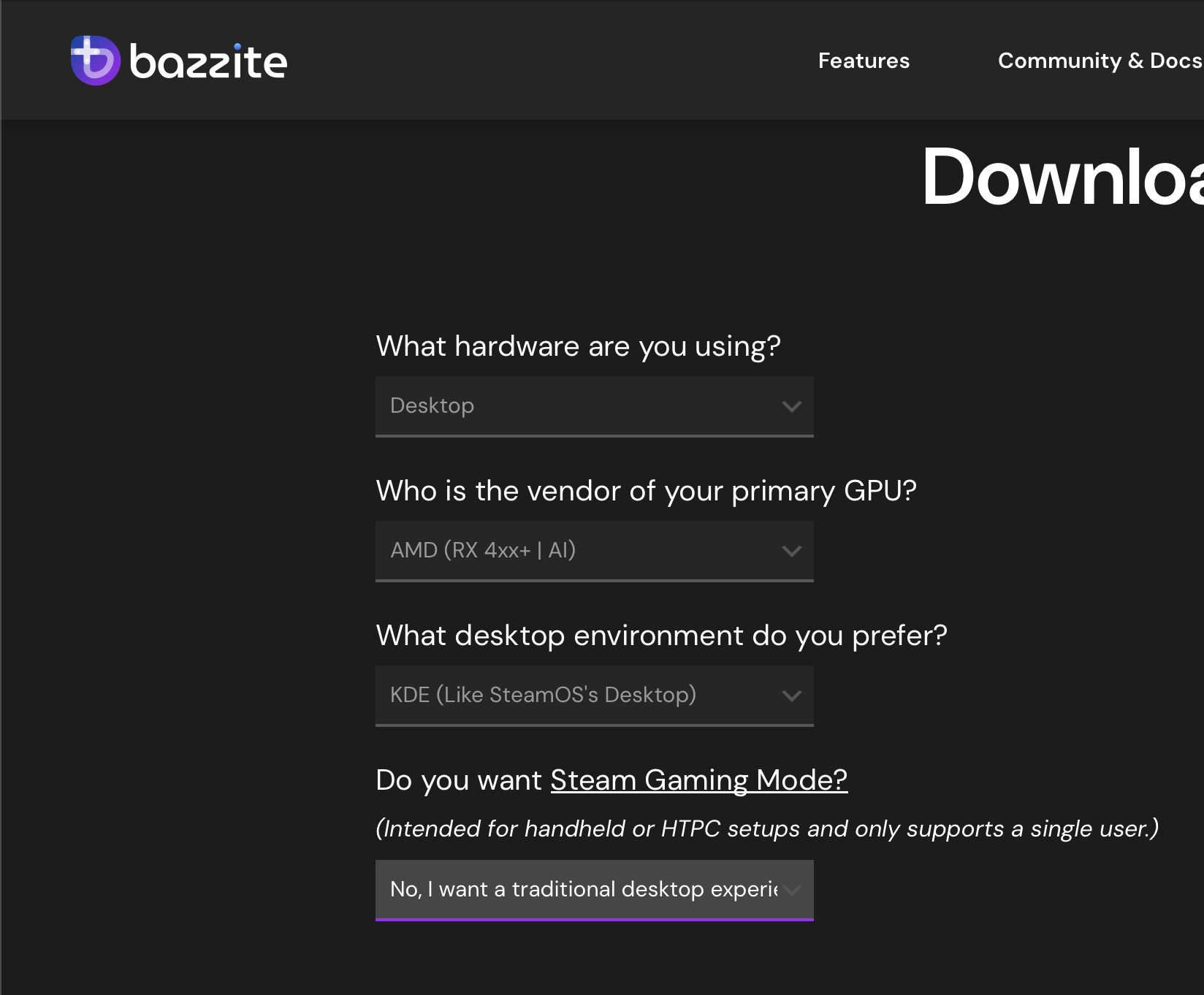
If you want to boot straight into Steam Big Picture (great for home theater PCs), select "Yes" on the last option about Steam Gaming Mode. If you hate it, you can always rebase to the tradition desktop experience. I would advise the traditional experience though for a normal desktop. For me on AMD hardware I would run this command to rebase to the traditional desktop version.
rpm-ostree rebase ostree-unverified-registry:ghcr.io/ublue-os/bazzite:stable
That download page will create example rebase commands for you, or you can follow these docs. Note from the docs you can even rebase to Bazzite straight from a normal immutable Fedora install.
Once you've decided on a version, download the ISO, flash it to a drive with your chosen ISO flasher, then plug it into your computer and boot into your BIOS. Once there you'll select the USB drive to boot off of. Again this is all just like Windows setups.
I would add instructions of what options to select when installing the OS but they were so straight forward I literally don't remember what they were which gives you an idea of how quick it was. The experience is as easy or easier than Windows, so if you've installed Windows off an ISO I believe in you. This isn't Arch and doesn't require deep hardware / software knowledge to get it bootable.
After the install is done, reboot, unplug the USB, and eventually you will land in your fresh new desktop after logging in as the default admin user (the password is bazzite). My one piece of advice here is to create a new user with a new password for yourself with admin level permissions via "System Settings" -> "Users", log in as that one, and then delete the default admin user. At a minimum change the default password to something else.
Welcome to Linux!
Installing software in Bazzite
Flatpaks
You can think of a flatpak as a self contained application that is layered into the operating system as a single unit. Mentally comparing it to a deck of playing cards that do work, all stacked in a deck is a reasonable way to think about it. In more traditional versions of Linux (and even other operating systems) core libraries of software and configurations are shared. This was very efficient but very dangerous, especially in a distributed project like Linux where one applications engineers would have no idea what another was up to, which could result in two pieces of software breaking each other (or the whole OS) when installed because they modified some shared resource in a fatal way. A flatpak takes the extreme opposite approach. Nothing is shared. A flatpak contains the application code, and all of its needed pieces and accessories all in one package that an be layered into (and out of) any given Linux reliably, all defined in .yaml config files.
Bazzite (and other immutable systems) will come prebaked with a piece of software called Flatseal, which you can use to customize permissions for your flatpaks. This gives a nicely defined set of rules for how applications can interact, although it is by default more limiting to them. For example, the Discord flatpak can't scan running processes on your machine which means that the feature that shows which Steam game you're playing on your profile will break on Bazzite. Such restrictions can be worked around but must be done intentionally. The advantage here is it makes software on your machine far less creepy by default, and more closely mirrors how iOS restricts application tracking on iPhones.
Flathub
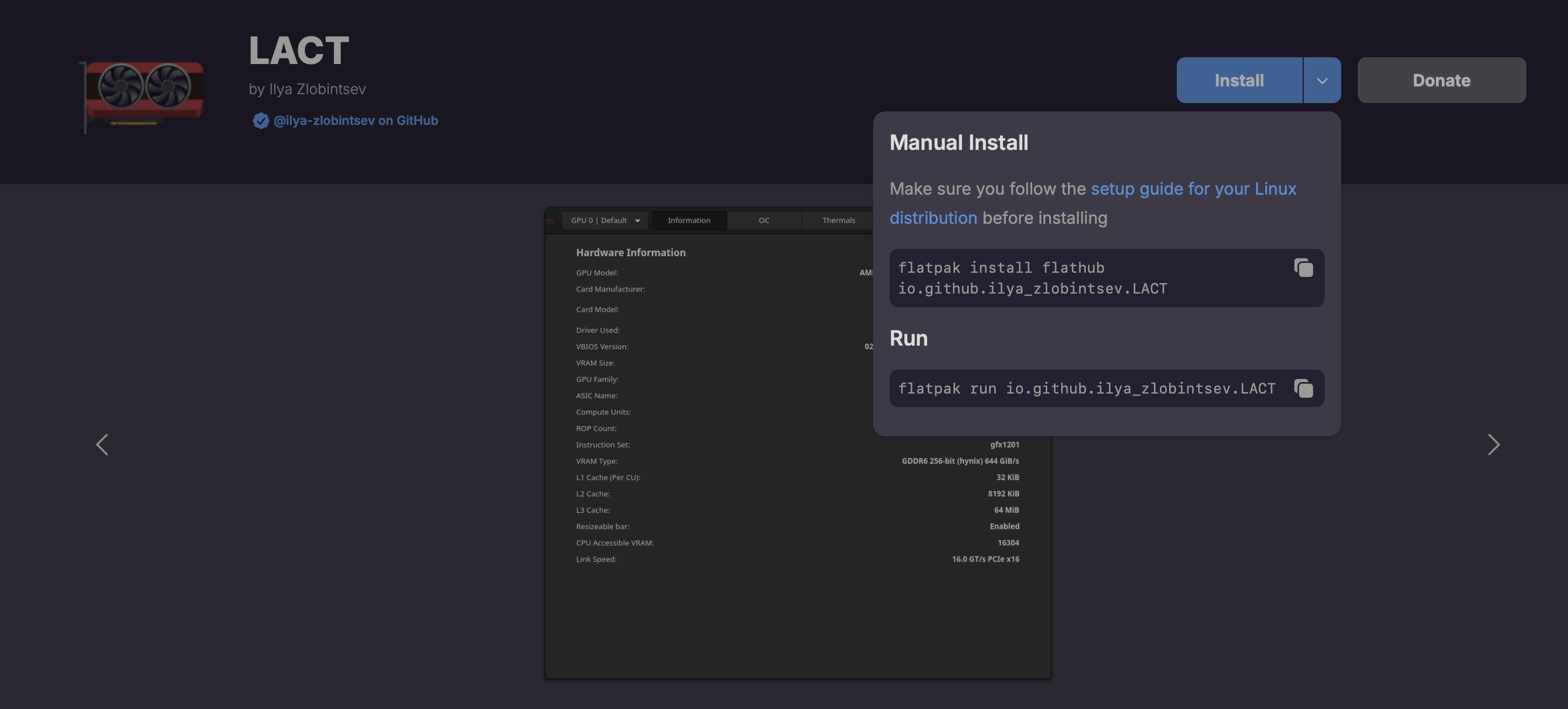
Installing software in immutable Linux is much more consistent and predictable than Windows once you know where to look. There are no .exe files to find on a plethora of websites, some more reputable than the next. Your main source of software until you venture out will be a website called Flathub which hosts the flatpaks mentioned in the last section. Bookmark it now. From here you can find software like LACT, and either download it via the web UI, or copy the command in the upper right corner shown below to get a command you will run in the terminal.
Speaking of which...
The terminal
Pin the Terminal app to your taskbar if you haven't already. You can find it by searching for "Terminal" after clicking on the icon that replaces the "Windows" logo because search actually works in Bazzite.
The terminal is powerful on this system in ways you may not be used to. One immediate sticking point though for new users is how to copy and paste things in it. Part of the issue here is that in Linux, control + c is a reserved command for canceling a running process in a terminal. To copy something, use shift control c and to paste use shift control v within the terminal. You can also see these shortcuts in the right click menu after right clicking in the Terminal itself if you forget.
For now, take the install command for some flatpak you want from flathub and paste it into the terminal and run it. All your install commands will be some variation of:
flatpak install flathub
With the name of the flatpak specified after the flathub part. You can then run the application with
flatpak run SwapInTheNameOfYourApplicationHere
When in doubt, slap a --help at the end of a command like this
flatpak --help
to see all the options. This --help option is consistent on well written Linux applications and the main way to discover how to use a CLI application. If you really want to see the deep magic though...
man pages
man is short for "manual". If you want to see the manual for the manual, run
man man
You're now in something called a "CLI pager" which is like a minimal GUI in a terminal. Press "q" to exit. Man pages often contain a lot more detail than the normal --help pages which are meant to be pretty quick. When Linux nerds on forums get snippy about "RTFM" this is usually what they mean.
You can man just about anything on a Linux system. Wanna see how the ls command works for listing a directories contents?
man ls
rpm-ostree
An alternative to using flatpak is to layer it in yourself using rpm-ostree. If you download a .rpm file (this opens you up to install software from places beyond Flathub and flatpaks) you can install it like I did here installing LACT as an RPM instead of a flatpak
sudo rpm-ostree install lact-0.8.3-0.x86_64.fedora-41.rpm
sudo is the "I know what I'm doing" option for a command that will require a password.
ujust
Also in the terminal, run this (trust me)
ujust
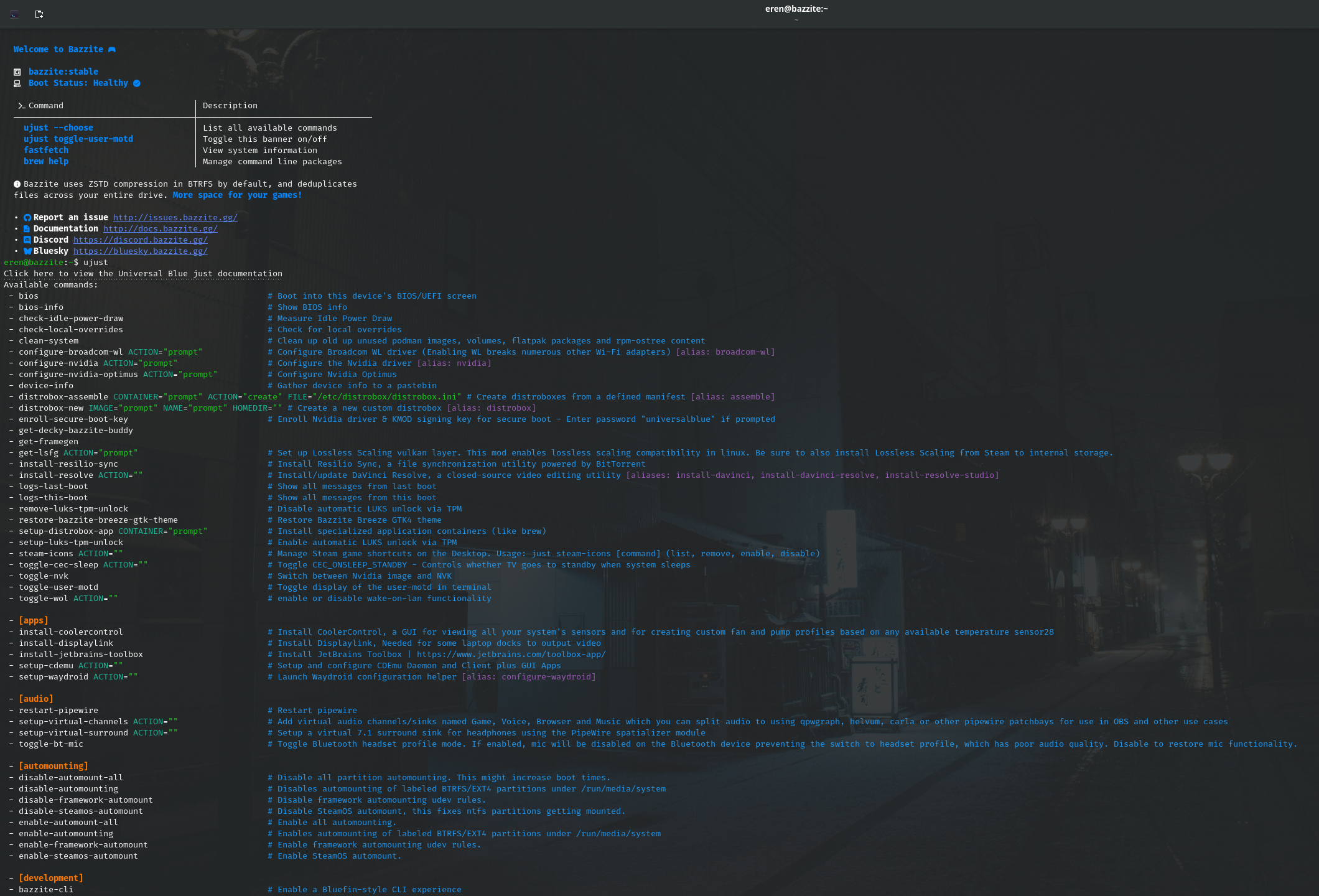
ujust is a command that contains useful scripts specifically for Bazzite. One you'll use instead of being abused by Windows Update is ujust update.
Controllers

I have an Xbox One Elite 2 controller and it just worked on plugging it in, both in corded and wireless dongle mode. I used it to play Expedition 33 for about 100 hours without a single issue. Removing it from the system has proved easier than Windows, as I can just delete it out of the directory /dev/input/ if I ever need to reset the connection which is a far cry from the usual Windows experience.
In general the /dev/ directory (short for "device", not "developer") will be your place for managing devices plugged into the machine besides any options that pop up in the UI.
Audio
This one is a common issue I'm asked about and I sadly have no useful experience. I have a Schiit Modius DAC, and it also Just Worked. No installs. No configs. That's also more a compliment to the DAC than Linux, as this little piece of hardware is designed to work without drivers. I don't use any other audio devices on my Linux machine right now but if I have any misadventures I'll post my findings.
Things I have LOVED
Archive file format tools built in
You won't need to install any extra tools into the OS to work with common archive formats. Bazzite KDE comes with tools in the CLI via the rar, tar, and 7z commands for working with archives. Wanna peek inside a rar files before unpacking it? Run rar l file_name.rar and you'll get a full list of the contents. Even better, those same tools are built into the GUI and you can right click on an archive file to do many of the things you can do via the CLI.
Games just work
Cyberpunk 2077, Helldivers 2, Factorio, Expedition 33, Nier: Automata, the various S.T.A.L.K.E.R games, have all just worked and have been more stable and smooth than they were on Windows for me. This is largely the result of the Proton compatibility layer built up by the open source software community and integrated into Steam by Valve, more than studios actually making Linux versions of their games.
My previous Windows install was plagued with micro-stutter issues that I had learned to live with, and the first time I fired up Helldivers 2 in Linux blew my mind at how smooth and "un-jittery" it felt, even though games were running at the same framerate as before. This was on an Nvidia RTX 3070, and the experience on an AMD RX 9070XT has been just as reliable.
KDE in general
I mentioned this above, but KDE feels like what Windows should have become.
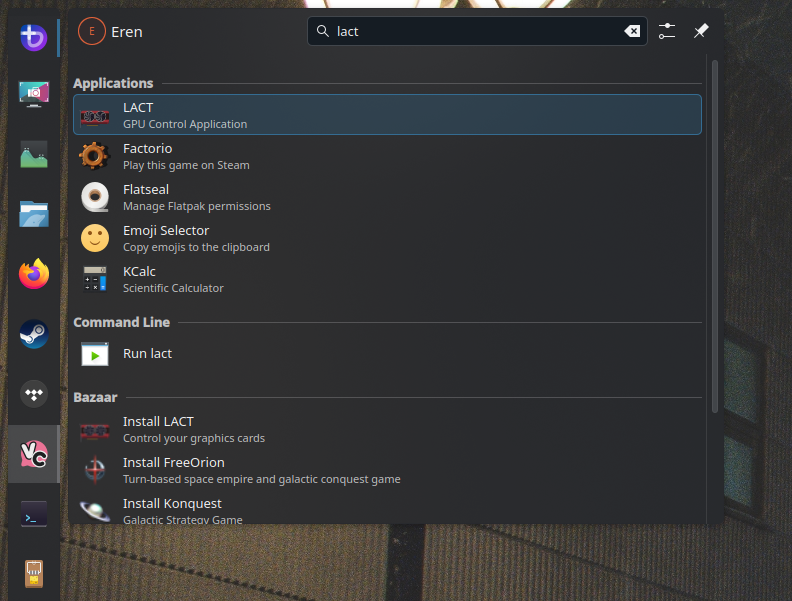
The search bar actually functions instead of searching the internet with Bing.
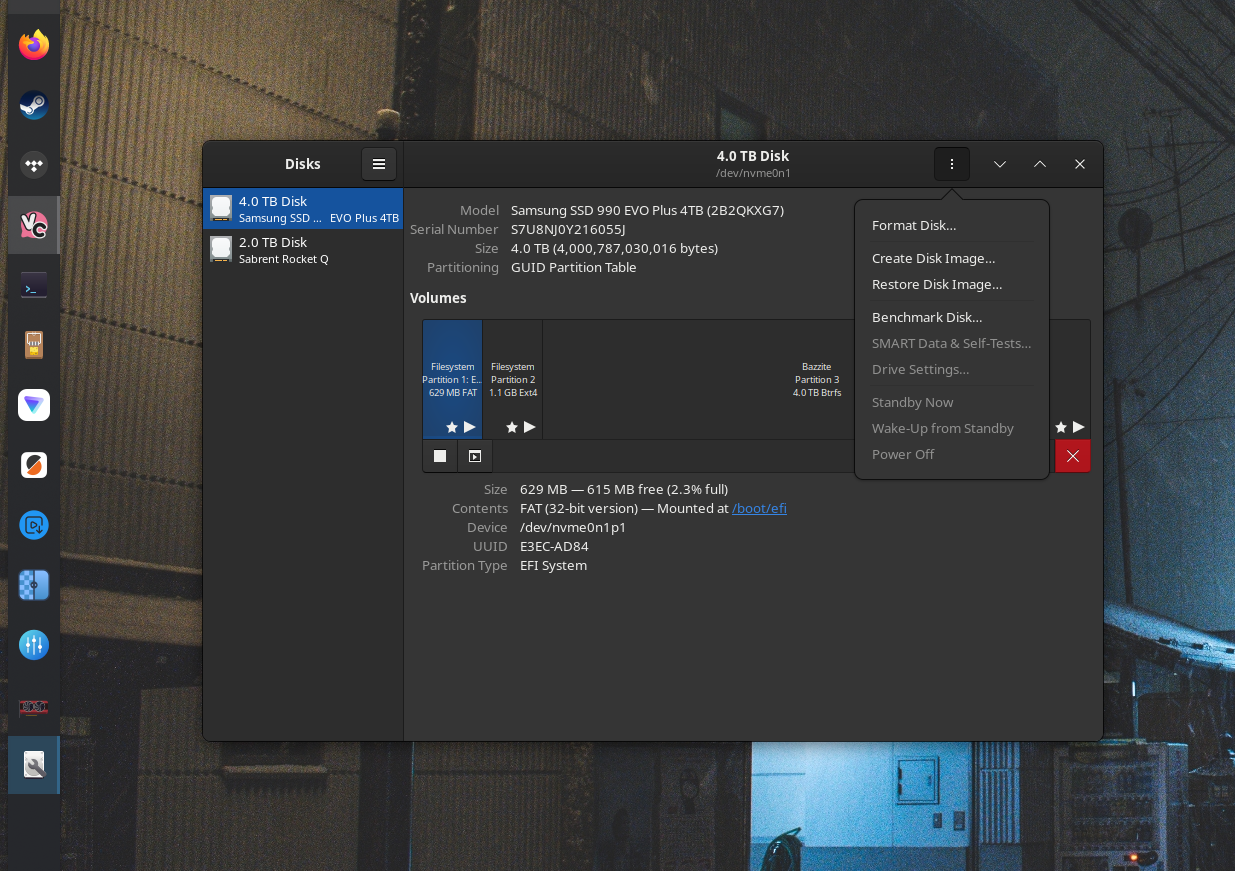
The disk manager isn't split into multiple half functioning tools.
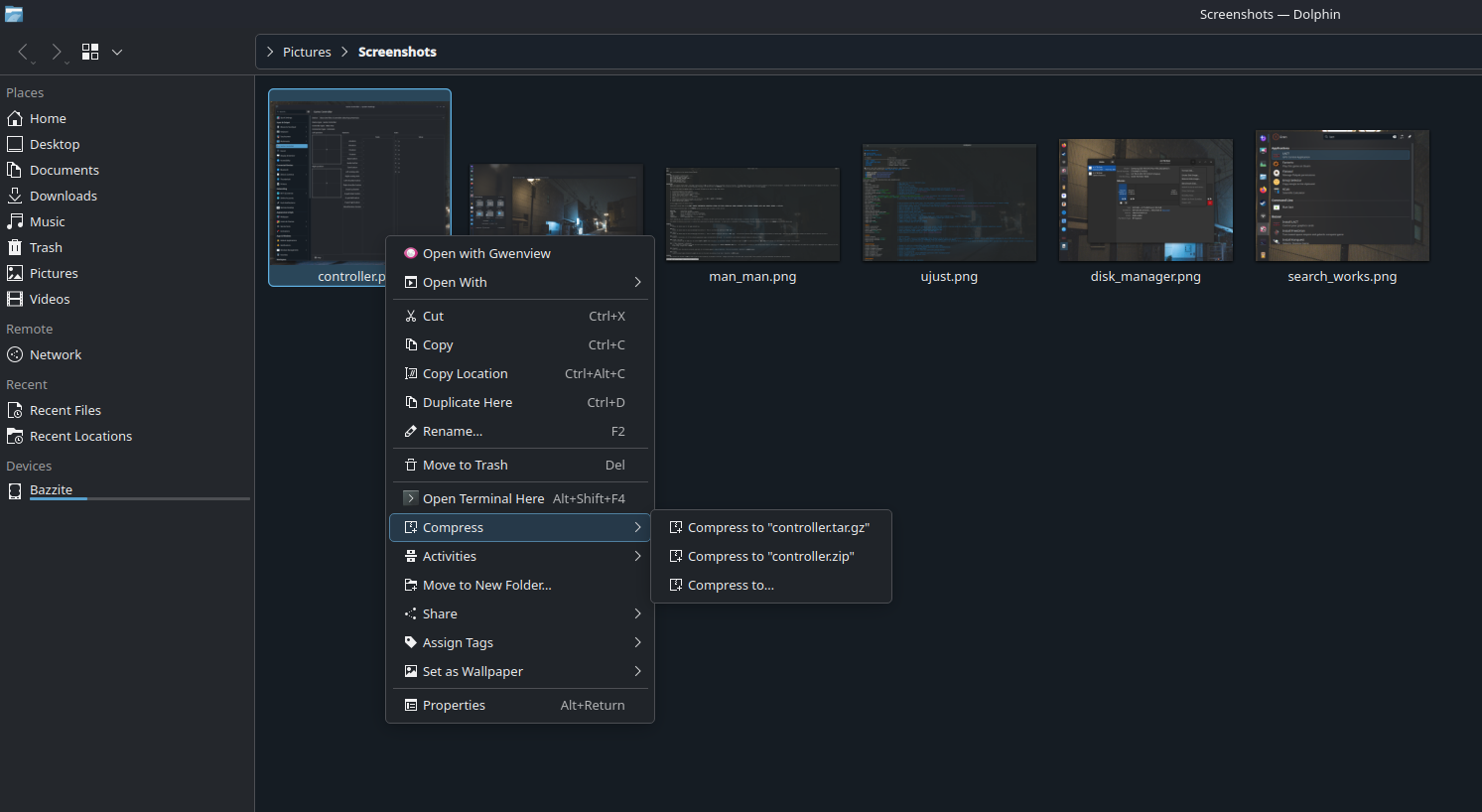
It's a love letter to good right click menus.
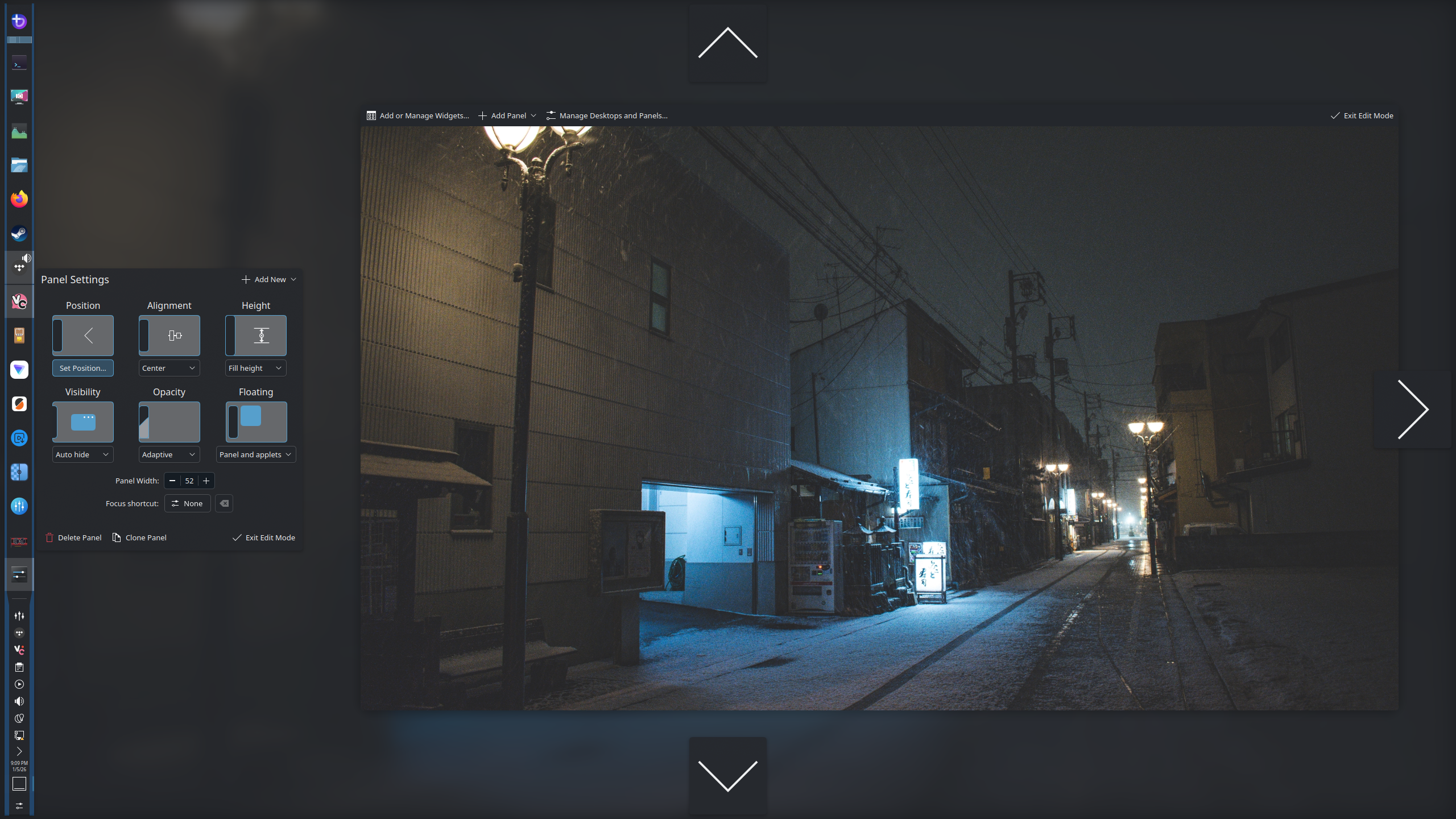
The task bar is fully customizable. Apparently this is too hard for Microsoft?
It doesn't hold your files hostage in the cloud via OneDrive and it doesn't have built in ads.
ytDownload
Have you ever wanted to download a video from...I don't know basically any website? Boy do I have an application for you. This is built off the famous/ infamous ytdl Linux package for downloading Youtube videos.
Image upscaler
Local running AI powered image upscaler with a variety of models to chose from. Great for making use of your GPU for more than running janky Cyberpunk 2077 mods.
It actually stays asleep
I've never had a Windows install that stays asleep. It's either my mouse, microphone, some software, ghosts, or something else that wakes the system to the point where I never trusted sleep mode on Windows. Not so on Linux. It works.
Overclocking the GPU
I listed this as a pain point, but in all it's a less painful experience than on Windows. EVGA Precision X is a dead project with bad UX/UI choices (I'm sorry EVGA your hardware is amazing but not your software), and MSI Afterburner was an infuriating unreliable mess for me that often forgot my settings. LACT actually remembers my settings between boots and behaves reliably. On top of that I can export and update my settings via the CLI. Below I'm using a standard Linux utility called cat to read the flat text config of LACT
user@bazzite:~$ cat /etc/lact/config.yaml
version: 5
daemon:
  log_level: info
  admin_user: user
  admin_group: wheel
  disable_clocks_cleanup: false
apply_settings_timer: 5
gpus:
  1002:7550-1DA2:E489-0000:0c:00.0:
    fan_control_enabled: true
    fan_control_settings:
      mode: curve
      static_speed: 0.5
      temperature_key: edge
      interval_ms: 500
      curve:
        40: 0.25
        49: 0.37
        59: 0.52
        69: 0.75
        77: 1.0
      spindown_delay_ms: 5000
      change_threshold: 2
    pmfw_options:
      minimum_pwm: 25
      zero_rpm: true
    power_cap: 350.0
    performance_level: manual
    max_memory_clock: 1290
    gpu_clock_offsets:
      0: 40
    voltage_offset: -50
    power_profile_mode_index: 0
current_profile: null
auto_switch_profiles: false
All the things I don't have to disable or futz with
Not having to rip out Facebook App, Edge, Teams, OneDrive, Outlook, Outlook (New), and Co Pilot is digital therapy.
A peek into the abyss
Under the GUI, there is a text based operating system that treats everything as a file and can be fully scripted however you want. The following is a contrived trivial example, but I hope it gets your brain turning on the possibilities.
Let say your system goes to sleep after 10 minutes by default, but you would like your system to stay on long enough for a file download to finish that you are confident will be done in about 20 (you can know the download is done programmatically with a script btw but we'll ignore that for now). So you want your system to finish the download, then update everything and shut down all without you touching it as you're headed out the door for the evening touching grass.
To do that, you'd open up the Kate text editor in Bazzite and make a file called "overnight-maintenance" and save it with a .sh file extension. Then give it this contents:
#!/bin/bash

# overnight-maintenance.sh
# Waits 30 minutes, updates Flatpaks and OS, then shuts down

echo "Maintenance script started!"
echo "Waiting 30 minutes before running updates..."

# Prevent system from sleeping while this script runs
systemd-inhibit --what=idle:sleep --mode=block sleep 1800

echo "Updating Flatpak applications..."
flatpak update -y

echo "Updating the operating system..."
rpm-ostree upgrade

echo "All updates complete! Shutting down in 10 seconds..."
sleep 10
systemctl poweroff
Notice all the familiar stuff in here? flatpak and rpm-ostree are commands you've seen before. echo sends things to the console as text output you can read. systemctl is pronounced "system cuttle" for reasons I don't understand, but it executes system control level commands. You can explore it with systemctl --help in the terminal. You can explore the inhibit command with systemd-inhibit --help. They also have man pages. Seeing a theme here?
Running this involves granting the file the ability to execute via a command called chmod, because by default the OS assumes it's just a text file and not a program. Once saved as overnight-maintenance.sh you then run this command in the Terminal (while in the same directory where you saved the file, use cd to get there and if you don't know what cd you now know how to find out)
chmod +x overnight-maintenance.sh
+x being the "add the ability to execute" bit, then you run the script with
./overnight-maintenance.sh
And all your automated tasks should begin. You're literally a system hacker now.
More reading, resources, and articles I recommend
"Year of the Linux Desktop" has been a running meme in the same way that "fusion power has been 20 years away for 60 years", but we may finally be there according to this PC Gamer article and I think I agree.
More Linux gaming compatibility work
Linux Basics for Hackers
This book can be a little cringey in a "l33t master hacker" sort of way, but it's none the less a fantastic intro to Linux. I love the mentality of learning a thing by breaking it, and if that describes your learning style (brain like a particle collider) this might be for you too. It teaches using Kali Linux, which is a rather unique distro aimed at cyber security folks.
How Linux Works
A deeper and more thorough dive into all things Linux. I've not read this book fully front to back, but jumped to sections of interest as I needed them and found it incredibly helpful if a bit textbook / manual like.
Google Gemini
As much as I dislike "I asked ChatGPT" style problem solving (aka "second hand thinking") there are times when you don't even know enough to know what questions to ask to solve your problem. A sort of "learning cliff of ignorance" that is very hard to get over without direct help. Gemini is a great tool in this situation, especially when you request it to provide additional links and documentation which it seems uniquely good at. Asking it to break down cryptic error messages and stack traces can be very helpful as it can teach you how to work through these problems so you don't need it in the future. Treat it like a chaotic but helpful Bender at your side and not like Shodan.
There are some great Linux communities on Reddit, and I've generally found users on Reddit to be less prickly to basic questions than those on the various Stack Exchange forums.
Welcome to your first steps in becoming a real power user.